
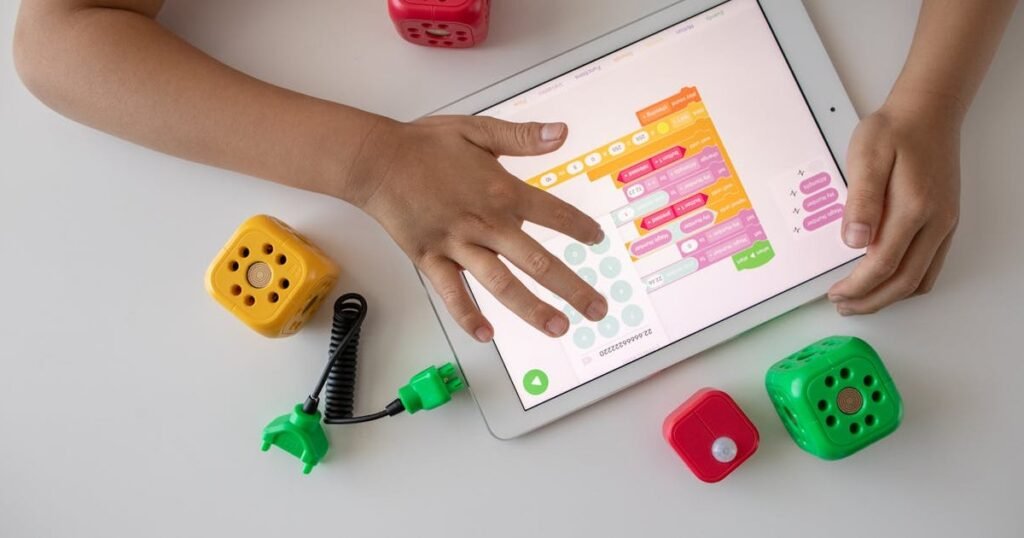
Best Educational Apps for Kids: We Tested 50 So You Don’t Have To (2026)
The kids’ app section of the App Store is a minefield. For every genuinely brilliant educational app, there are twenty that are glorified ad-delivery systems dressed up with cartoon animals and primary colors. Some of the worst offenders are the ones with the highest ratings, because it turns out that a 4-year-old will happily tap “5 stars!” on anything that has a dancing unicorn, and enough parents don’t dig deeper than the star count.
Over the past two years, across three kids and two tablets that have been through more than they deserve, I’ve downloaded, tested, and formed strong opinions about more than 50 educational apps aimed at kids ages 2-5. I’ve watched my children use them. I’ve timed how long they stay engaged. I’ve tracked whether the apps actually teach anything measurable. And I’ve uninstalled most of them.
What survived that gauntlet is what you’ll find in this guide.
This post contains affiliate links. If you purchase through our links, we may earn a small commission at no extra cost to you.
How We Evaluated: Our Testing Criteria
Not all apps are created equal, and “educational” is a word that app developers throw around with abandon. Here’s what we actually measured:
- Educational value (40% of our assessment): Does this app teach something specific and measurable? Can my child demonstrate a new skill or knowledge after using it? We looked for apps grounded in actual learning frameworks, not just apps that put a math problem between cartoon segments.
- Engagement and replay value (25%): Does my child want to come back to this app? Not because of addictive mechanics (loot boxes, streaks, time pressure), but because the learning itself is rewarding? An app my kid abandons after two sessions isn’t educational — it’s shelfware.
- Ads and in-app purchases (20%): This is a dealbreaker category. Any app that shows ads to children, uses manipulative “ask your parents” gates, or locks essential content behind paywalls after advertising itself as free got an automatic penalty. We have zero tolerance for dark patterns targeting kids.
- Design quality (15%): Is the interface intuitive for small fingers and developing fine motor skills? Are the visuals appealing without being overstimulating? Is the audio pleasant or will it make you want to throw the tablet out a window after 10 minutes? These things matter for sustained use.
Best Overall: Our Top 5 Picks
1. Khan Academy Kids (Ages 2-8) — Free
If I could only recommend one educational app, this is it. Khan Academy Kids is thorough, thoughtfully designed, completely free, and contains zero ads or in-app purchases. It covers reading, writing, math, social-emotional learning, and creative expression through a mix of interactive activities, books, and videos. The adaptive learning engine adjusts difficulty based on your child’s performance, which means two different 4-year-olds will have two different experiences tailored to their level. My oldest used this app from age 3 through kindergarten prep and entered school measurably ahead on letter recognition and basic math. The fact that it’s entirely free feels almost too good to be true, but Khan Academy’s nonprofit model makes it real. This is the gold standard.
2. Homer (Ages 2-8) — Subscription ($9.99/month)
Homer (formerly Homer Reading) has evolved into one of the most effective early literacy apps available. It builds a personalized learning path based on your child’s interests (dinosaurs, space, princesses, trucks — whatever hooks them) and uses that interest to drive phonics, sight words, and reading comprehension. The “Learn to Read” pathway is structured and progressive, moving from letter sounds through blending through early reading in a way that feels like play, not drilling. My middle child went from recognizing a handful of letters to sounding out simple words in about three months of regular Homer use. The subscription cost is the only downside, but the quality of the reading instruction justifies it.
3. Busy Shapes & Colors (Ages 2-5) — $3.99
This one flies under the radar and it shouldn’t. Busy Shapes uses the tablet’s touchscreen, accelerometer, and camera in creative ways to teach spatial reasoning, shape recognition, and problem-solving. Kids drag shapes into matching holes, but the physics engine makes the shapes behave realistically — they bump, stack, fall, and rotate. It sounds simple, but the execution is brilliant. The difficulty ramps smoothly, and there’s genuine cognitive challenge here. No ads, no in-app purchases, one-time purchase price. It’s the kind of app that makes you feel good about handing over the tablet.
4. Endless Alphabet (Ages 2-5) — $8.99
Endless Alphabet teaches vocabulary through charming monster animations. Kids drag letters into place to spell a word, then watch a short animated skit that demonstrates the word’s meaning. “Cooperate” shows monsters working together to move something heavy. “Belch” shows exactly what you’d expect, and your 3-year-old will think it’s the funniest thing that ever happened. The vocabulary choices are ambitious — these aren’t “cat” and “dog” words, they’re words like “tremendous,” “collaborate,” and “famished.” My kids absorbed vocabulary from this app that surprised their preschool teachers. The related apps Endless Numbers and Endless Reader are equally good.
5. Toca Boca World (Ages 3-5) — Free with purchases
Toca Boca isn’t educational in the traditional “learn your ABCs” sense. It’s a digital sandbox for imaginative play. Kids create characters, build scenes, run stores, cook food, design houses, and tell stories. There are no objectives, no scores, no right answers — just tools for creativity. I include it here because open-ended creative play is as essential to early childhood development as literacy and math, and Toca Boca does it better than any other app. The base app is free with a limited world; additional locations and characters are in-app purchases. We bought a few and consider them among the best app purchases we’ve made.
Best by Subject
Reading and Literacy
- Homer — Best overall reading program. Systematic phonics instruction wrapped in engaging, interest-driven content. Subscription-based but worth it for serious literacy building.
- Teach Your Monster to Read — A phonics game where kids build a monster and progress through reading challenges. Originally developed with support from the UK National Literacy Trust. Not as deep as Homer but cheaper (one-time purchase of $4.99) and very effective for phonemic awareness.
- Epic! — Not strictly an app, but a digital library with thousands of children’s books, audiobooks, and read-to-me titles. Having access to this much content in one place has been transformative for our family. The free school version is available through many schools; the home subscription is $9.99/month. Our kids read more because of Epic, full stop.
Math
- Khan Academy Kids — The math content within Khan Academy Kids is substantial enough to stand on its own. Counting, number recognition, addition, subtraction, patterns, shapes — all covered with adaptive difficulty.
- Moose Math by Duck Duck Moose — A charming math app where kids run a juice shop and pet salon using math skills. Counting, addition, subtraction, sorting, and geometry are woven into the gameplay. Free and ad-free. One of the best math apps for the 3-5 age range.
- Todo Math — Daily math practice structured as a progression of mini-games. Covers numbers and counting through early addition and subtraction. The daily practice model builds a habit loop, and the visual math representations (number lines, ten frames) align with how modern elementary schools teach math.
Science
- Tinybop apps (The Human Body, Plants, Weather, etc.) — Tinybop makes a series of exploration apps that let kids interact with scientific concepts. Tap a body to see the skeleton. Feed a plant and watch it grow. Create weather systems. Each app is a self-contained science experience with beautiful design and no text — just discovery. At $3.99-4.99 each, they’re worth collecting.
- Toca Nature — A simple ecosystem simulator. Kids raise and lower terrain, plant trees, and watch animals arrive and interact. It’s a gentle introduction to ecology and habitat concepts. No text, no instructions, just exploration and observation.
- Peekaboo Barn (for ages 2-3) — A simple “who’s in the barn?” game that teaches animal names and sounds. It’s basic, but for the youngest age group, it’s perfectly calibrated. A good first science app for toddlers just starting to categorize the world.
Coding and Logic
- ScratchJr (Ages 5-7) — Created by the MIT Media Lab, ScratchJr lets kids snap together visual programming blocks to animate characters and tell stories. It teaches sequencing, conditional logic, and cause-and-effect through creative projects. Free, no ads, thoughtfully designed. This is the app that convinced me that coding for preschoolers isn’t a gimmick.
- Lightbot Jr (Ages 4-8) — A puzzle game where kids program a robot to light up tiles. The puzzles teach sequences, procedures, and loops without ever using those words. It’s elegant game design that happens to be a computer science curriculum. One-time purchase, no ads.
- Kodable (Ages 4-7) — A structured coding curriculum that progresses from pre-reading coding concepts through actual JavaScript basics for older kids. The early levels are drag-and-drop problem solving that even our 4-year-old navigated successfully. Free tier available; full access requires a subscription.
Creativity
- Toca Boca World — Already covered above. The best digital sandbox for imaginative play.
- Sago Mini World — A collection of mini-games focused on creative play for the younger end of the age range (2-4). Building, cooking, dressing up, exploring environments. Everything is gentle, unhurried, and beautifully illustrated. Subscription-based but generous free content available.
- Drawing Desk Kids — A drawing and coloring app that actually works well for small fingers. Multiple brush types, stickers, stamps, and coloring pages. The free version has enough content to be worthwhile; the premium version is reasonably priced. Our 3-year-old creates “artwork” on this daily and insists we print out her favorites.
Best Free Apps
Because a great educational app doesn’t have to cost anything.
- Khan Academy Kids — Free, no ads, no in-app purchases. The best deal in children’s education, period.
- PBS Kids Games — A collection of games based on PBS shows (Daniel Tiger, Wild Kratts, Curious George). All free, no ads, decent educational value. The quality varies by game, but the best ones are genuinely good.
- Moose Math — Free, ad-free math game. No reason not to have this installed.
- ScratchJr — Free coding for kids. Created by MIT. Enough said.
- Duolingo ABC — From the language-learning app company, this reading and writing app is well-designed and completely free. It covers letter tracing, phonics, and sight words with Duolingo’s characteristically smooth UX.
Apps to Avoid: Red Flags to Watch For
Rather than name specific apps (because bad actors constantly rebrand and relaunch), here are the patterns that should make you immediately uninstall:
- Apps that show video ads between activities. Your 3-year-old should not be watching a 30-second ad for a mobile game before they can do their next phonics exercise. This is inexcusable in a children’s app. If an app does this, delete it regardless of how “educational” it claims to be.
- Apps that use “surprise” mechanics. Loot boxes, mystery eggs that hatch, spinning wheels for rewards — these are gambling mechanics designed to create compulsive behavior. They have no place in apps for children.
- Apps where the “educational” part is a thin wrapper around endless content consumption. If the “lesson” takes 30 seconds and the “reward” is a 3-minute cartoon, the app is a video delivery system, not an educational tool.
- Apps that require constant purchases to progress. If your child hits a wall every few activities and can only continue by buying something, the app is designed to extract money, not teach.
- Apps with characters that talk directly to your child asking them to buy things or “get their parent.” This manipulative design is specifically targeted at children too young to understand the commercial intent. It’s predatory.
- Apps that autoplay unrelated content. Any app where your child can end up watching videos or content you didn’t choose is a browsing app, not a learning app.
- Apps that require social features or profiles for young children. A 4-year-old doesn’t need a friend list, a profile picture, or the ability to share content publicly. Any app requesting this for preschoolers has misaligned priorities.
Age-by-Age App Recommendations
Ages 2-3: Keep It Simple
At this age, fine motor skills are still developing, attention spans are short, and frustration tolerance is low. Choose apps with large touch targets, simple cause-and-effect interactions, and minimal navigation required. Our picks for this age: Khan Academy Kids (start with the earliest content), Busy Shapes, Peekaboo Barn, Sago Mini World, and the Endless series (Alphabet, Numbers). Limit app sessions to 10-15 minutes and always supervise.
Ages 3-4: Building Skills
Now kids can handle multi-step interactions, basic game mechanics, and more complex content. This is the sweet spot for introducing structured learning apps alongside creative play. Our picks: Khan Academy Kids (core learning), Homer (if focusing on reading), Moose Math, Toca Boca apps, Tinybop science apps, and Teach Your Monster to Read. Sessions can extend to 15-25 minutes, and kids can navigate familiar apps somewhat independently.
Ages 4-5: Ready for More
Preschoolers and pre-K kids can handle real educational progression, beginning coding concepts, and creative tools with more complexity. Our picks: Homer or Duolingo ABC (reading), Todo Math (daily math practice), ScratchJr or Lightbot Jr (coding/logic), Toca Boca World (creative play), and Epic! (reading library). Sessions of 20-30 minutes are reasonable, and kids at this age can articulate what they’re learning and why they like specific apps.
Frequently Asked Questions
How much time should my kid spend on educational apps per day?
The AAP recommends no more than 1 hour of total screen time per day for kids ages 2-5. Educational apps are part of that total, not in addition to it. In our family, we typically allocate about half of our screen time budget to apps and half to shows, but this varies by day and situation. A 20-minute app session is a solid amount for most kids in this age range.
Are paid apps worth it, or should I stick with free ones?
Some of the best apps are free (Khan Academy Kids, ScratchJr, PBS Kids Games). But paid apps often have significant advantages: no ads, no manipulative upselling, and often higher production quality. A one-time purchase of $4-9 for an app your child will use for months is one of the best entertainment values available. For subscription apps, evaluate whether your child actually uses them regularly before committing to annual plans.
My child only wants to use one app and refuses others. Is that okay?
It’s normal and often fine. If the app is genuinely educational and your child is progressing through its content, concentrated use means deep engagement. The exception is if the “one app” is purely entertainment with no learning component. In that case, try introducing new apps during natural transition points (a car trip, a new routine) rather than forcing a swap during established screen time.
Can educational apps replace preschool or structured learning?
No. Apps are a supplement, not a replacement. The social interaction, physical manipulation of materials, group dynamics, and teacher-led instruction in preschool provide things that apps fundamentally cannot. That said, for families homeschooling or in situations where formal preschool isn’t accessible, a well-curated collection of educational apps can provide meaningful academic preparation for school. Khan Academy Kids, Homer, and a few others come close to structured curriculum.
How do I keep my child from downloading random apps or making purchases?
Both iOS and Android have robust parental controls. On iOS, use Screen Time settings to require a password for all downloads and purchases, and to restrict access to specific apps. On Android, use Google Family Link for the same controls. We also use Guided Access on iOS (triple-click the side button) to lock the tablet to a single app during our kids’ screen time. This prevents wandering to other apps, the browser, or the app store. Set this up before handing over the device, not after a problem occurs.